RDR2 Full Screen Not Working? 100% Permanent Solution
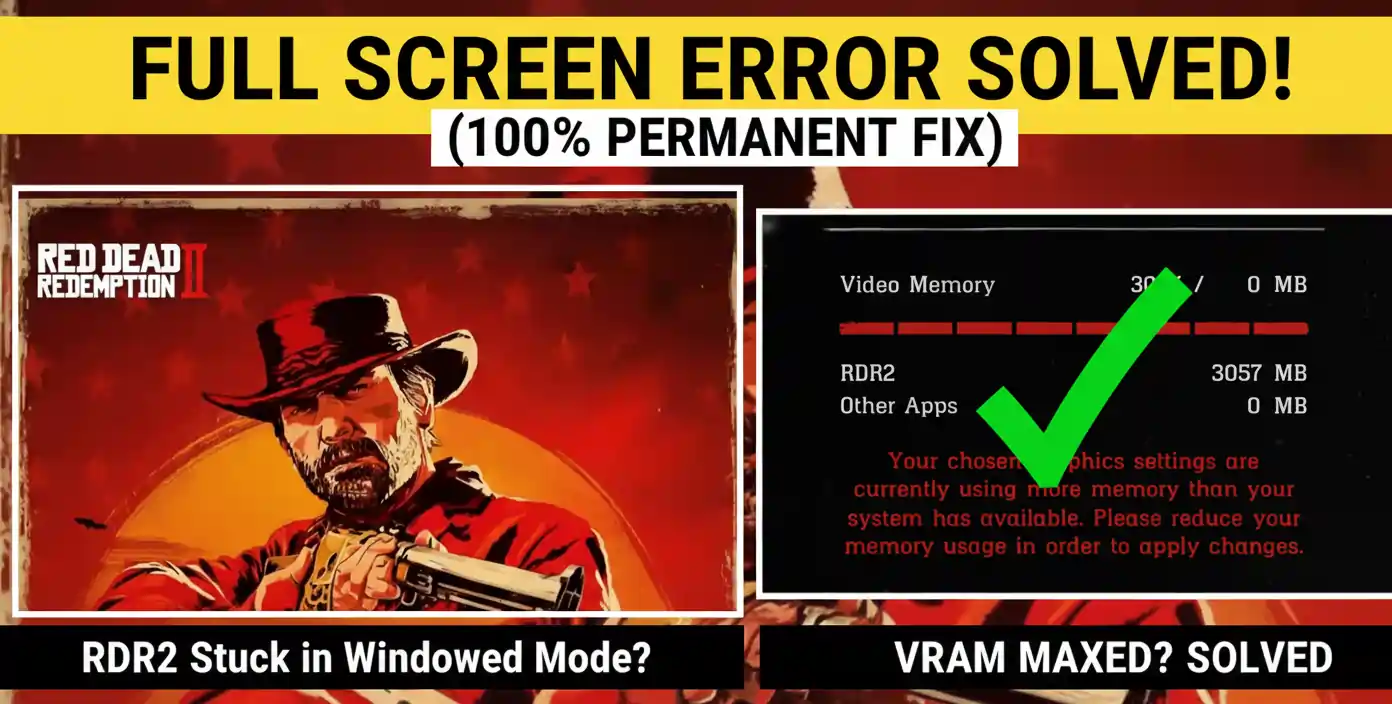
You are trying to play Red Dead Redemption 2 in Full Screen, but the game has other plans. You go to the settings, toggle "Full Screen," and... nothing. The "Apply Changes" button is greyed out, locked, or simply won't click.

You look at the top of the screen and see that dreaded Red Bar telling you that you will exceeded your Video Memory (VRAM). This is the "Golden Key" most players miss: you cannot fix the "Windowed Mode" glitch until you fix your Texture Quality.
The Problem: The VRAM Hostage Situation

Also read
In RDR2, if your settings use even 1 MB more than your graphics card has, the game "locks" the menu. Because Ultra Textures eat up massive amounts of memory, the game won't let you switch to Full Screen because it thinks the change will crash your system. To unlock the "Apply" button, you must first lower the texture quality.
The 100% Permanent Solution (Step-by-Step)
Step 1: Lower Texture Quality First
Don't try to change to Full Screen yet.
- Go to Settings > Graphics.
- Find Texture Quality.
- Change it from Ultra to High (or Medium if you have a 2GB/3GB card).
- Watch the bar: You will see the red VRAM bar at the top turn White immediately.
Step 2: Switch to Full Screen
Now that the bar is white, the "Apply" button is officially unlocked.
- Scroll to Screen Type.
- Select Full Screen.
- Hit Apply Changes (Enter/Confirm). It will actually work this time!
Why "High" is Better than "Ultra" for 4GB Cards
If you have a 4GB card, Ultra Textures will always push you into the "Red Zone." Many YouTubers suggest changing your desktop screen resolution, but that isn't a real solution. If you follow these steps, you don't need to touch your Windows display settings.